HR admin add Vacation Leave for teaching staff
Introduction:
Amrita E-Track is an indigenous application designed to help the organization run a digital attendance system. This documentation provides procedural guidance for HR to add vacation leave for teaching staff.
Getting Started:
To access Amrita Attendance Management System.
- Open an internet browser (Recommended to use Google Chrome)
- Type https://my.amrita.edu/ and click enter.
- Login with your amrita email id and password.
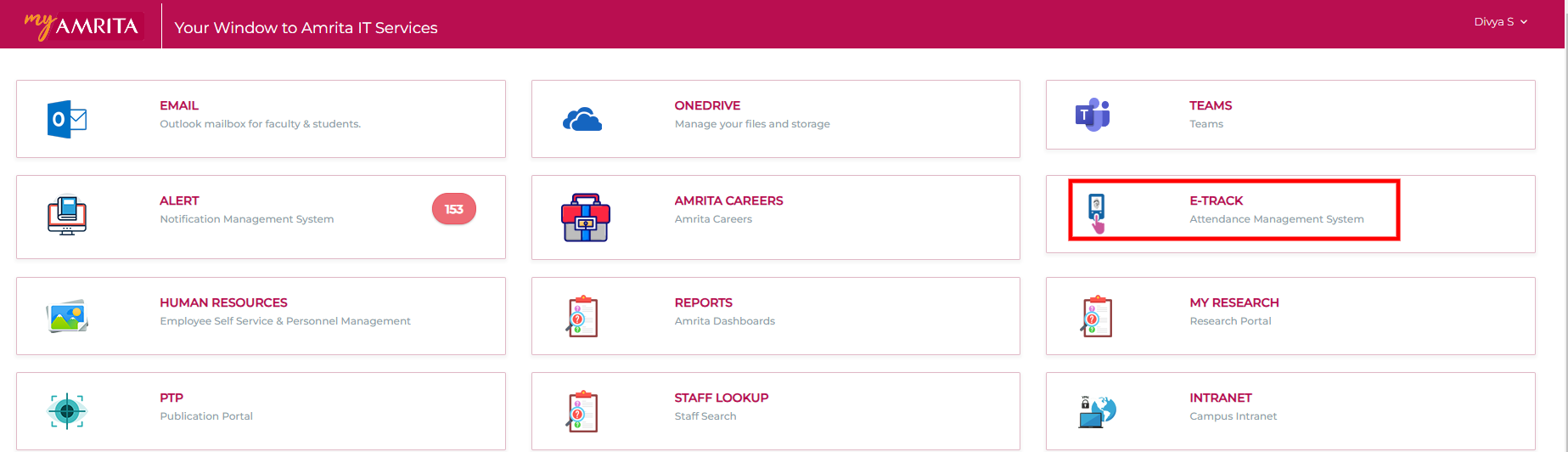
- Click AMRITA E-TRACK.
Adding vacation leave to teaching staff:
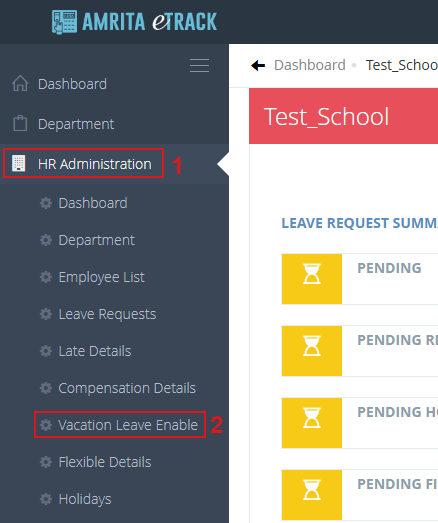
- Click on HR Administration
- Click on Vacation Leave Enable
- Enable vacation leave window will appear where you need to fill the required details.
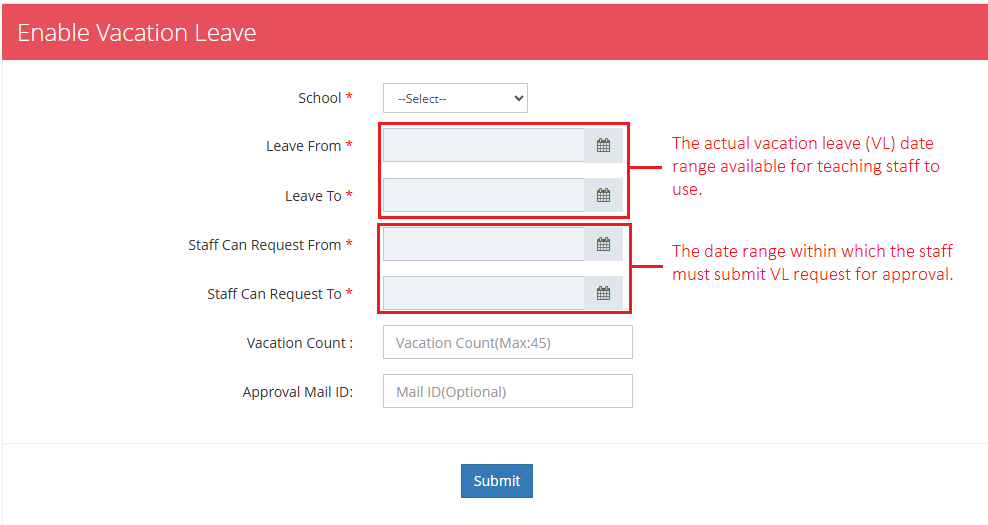
- Select School name from the School Dropdown menu.
Select Leave From and Leave To date. Leave From date is the actual required leave starting date and Leave To is the leave ending date.
Select Staff Can Request From and Staff Can Request To date. All staff must submit vacation leave request within these dates.
Enter the Vacation count. The maximum vacation leave allowable for an academic year is 45 days (This is a manual field where the count entered doesn't need to be the count of day between Leave From and Leave To date).
Enter Approval Mail ID . This field is optional. If provided, an email notification will be sent to the corresponding person regarding the vacation leave request. Then approver must approve the request to initiate further processing.
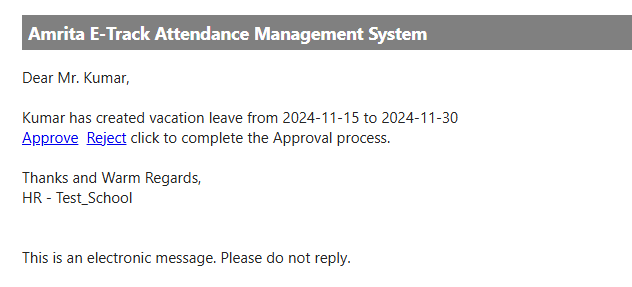
- If an approval email notification is sent, then Vacation leave status will be shown as Pending.
- Once the leave request is approved, the status will be updated to Approved and will be available for the staff members to apply.
- If required, the leave request can be rejected and the status will be updated to Rejected.
- The Email ID to which approval request sent will be displayed in the UI.
- If an approval email is not sent while creating vacation leave, Leave status will be displayed as Approved by default.
- There can be only one active vacation leave at a time. HR can create a new vacation leave for the same academic year only after the current active vacation leave end date has passed.
Click on Submit button.
Added vacation leave details will be listed under Vacation Leave.

- HR can edit a vacation leave by clicking the corresponding Edit button.

- Update the details and click on the Save button.
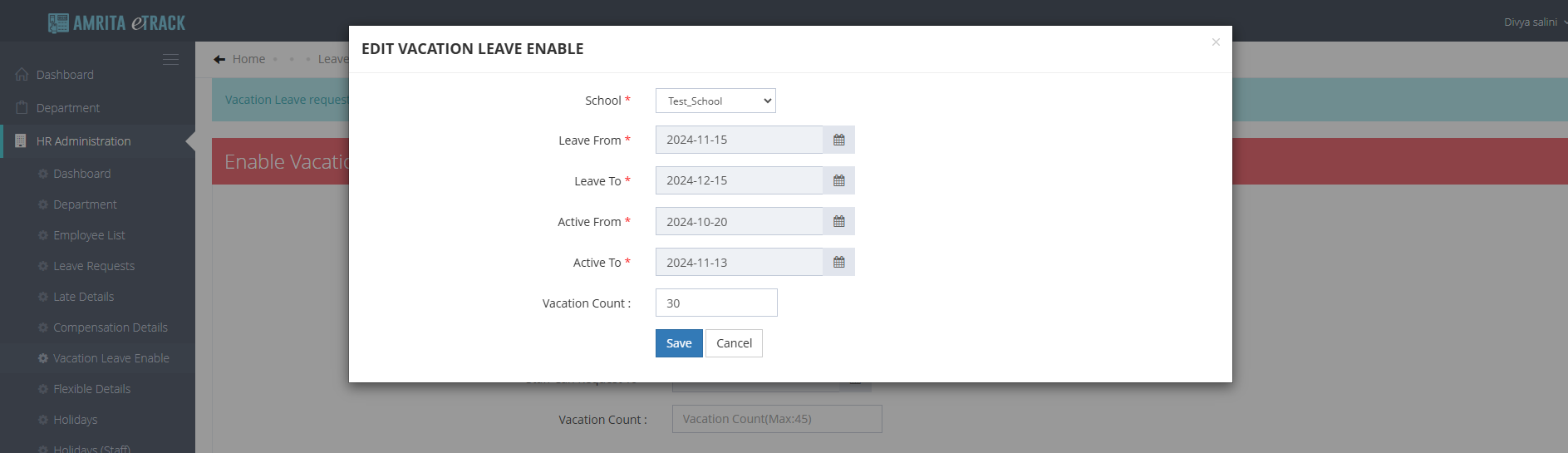
- HR can delete a vacation leave by clicking the corresponding Delete button.

How do HR admin grant final approval for vacation leave request.
Vacation Leave requests require a two-level approval process : HOD (first Level) and HR (Final-level)
For final level approval:
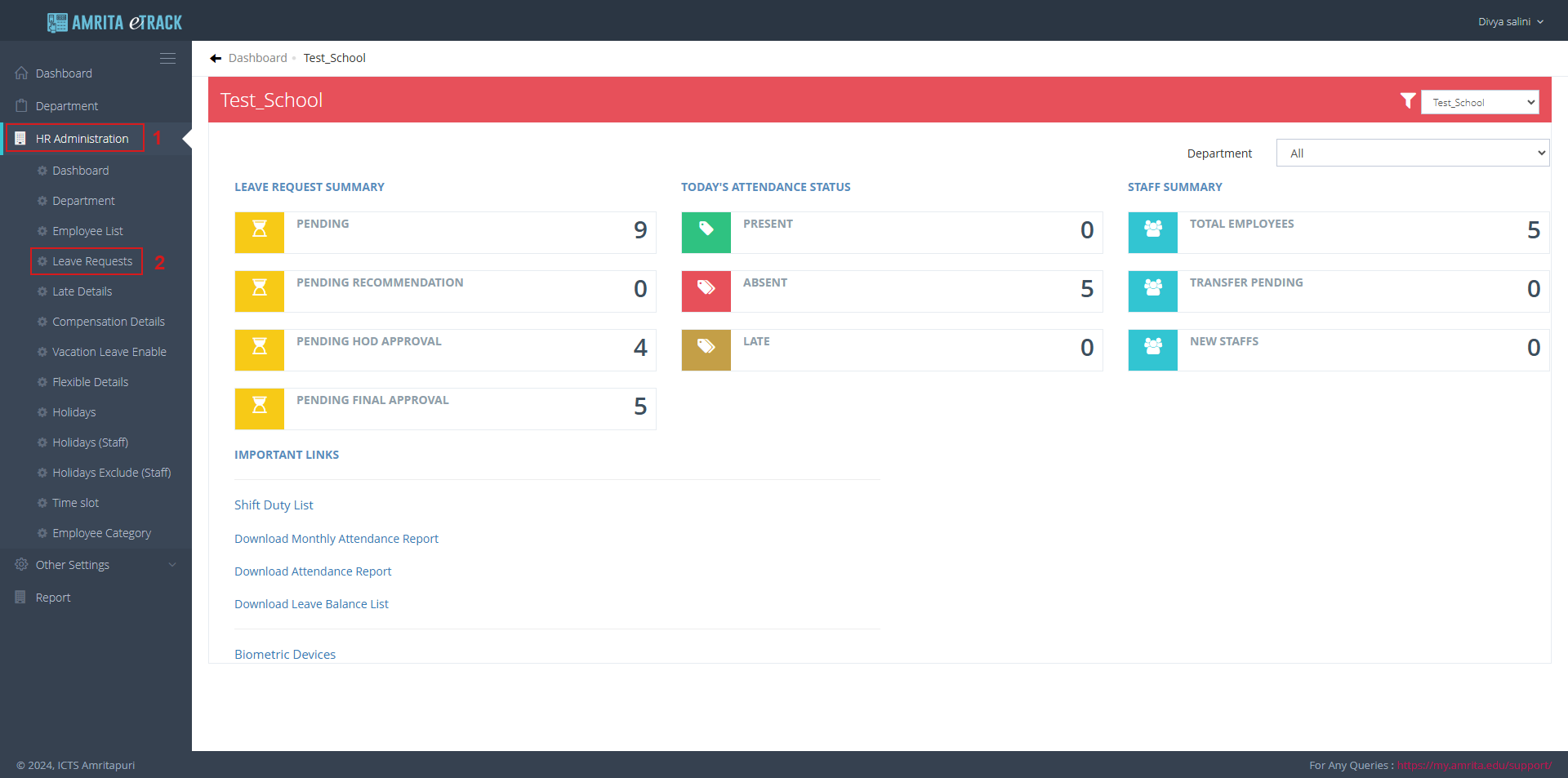
- Click on HR Administration
- Click on Leave Requests
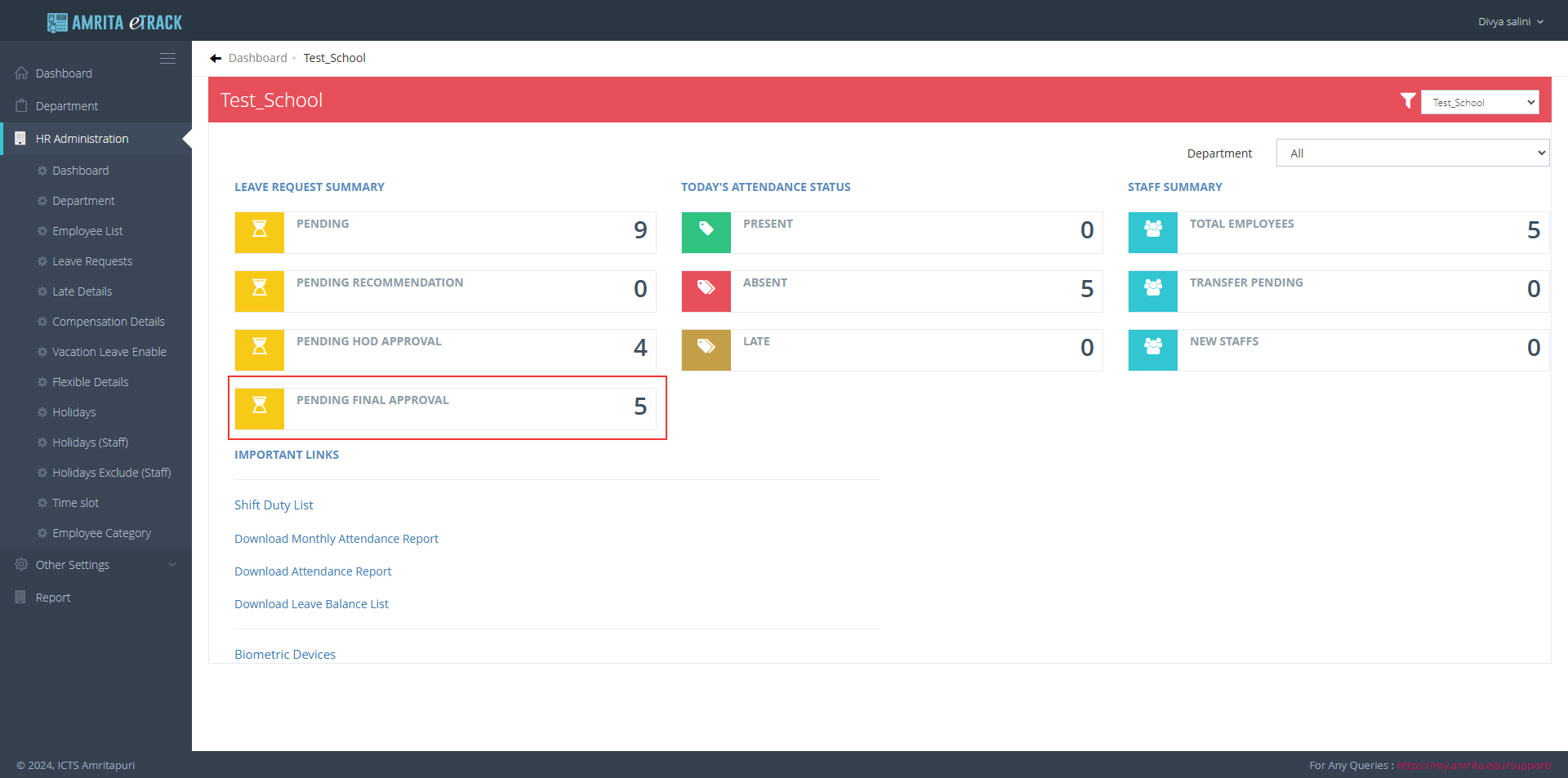
- Click on the count corresponding to PENDING FINAL APPROVAL
- By checking the select All checkbox HR admin can approve all the requests in a single click
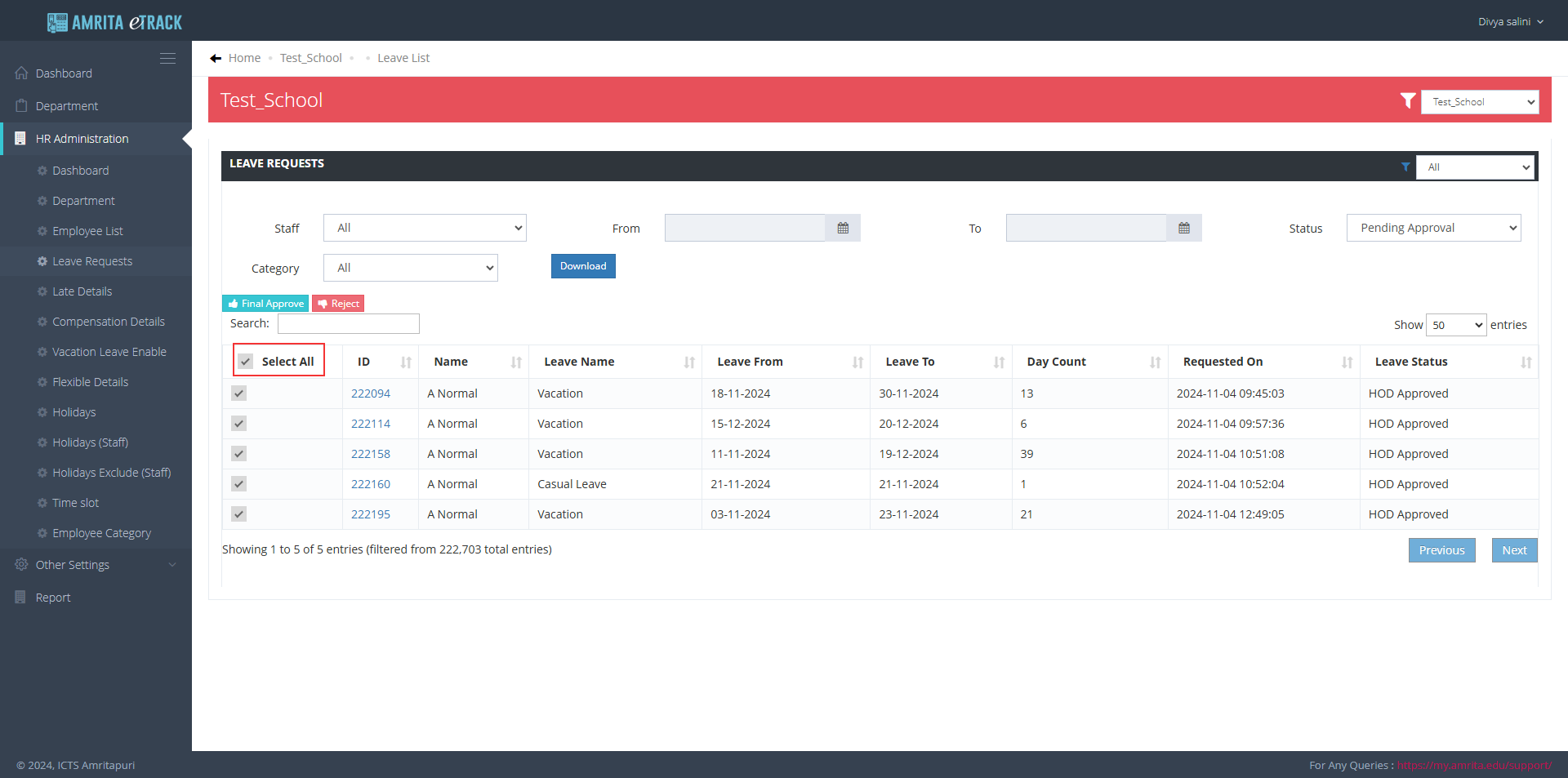
- Click on the Final Approve button to approve a leave request.
- Click on the Reject button to Reject a leave request if required.
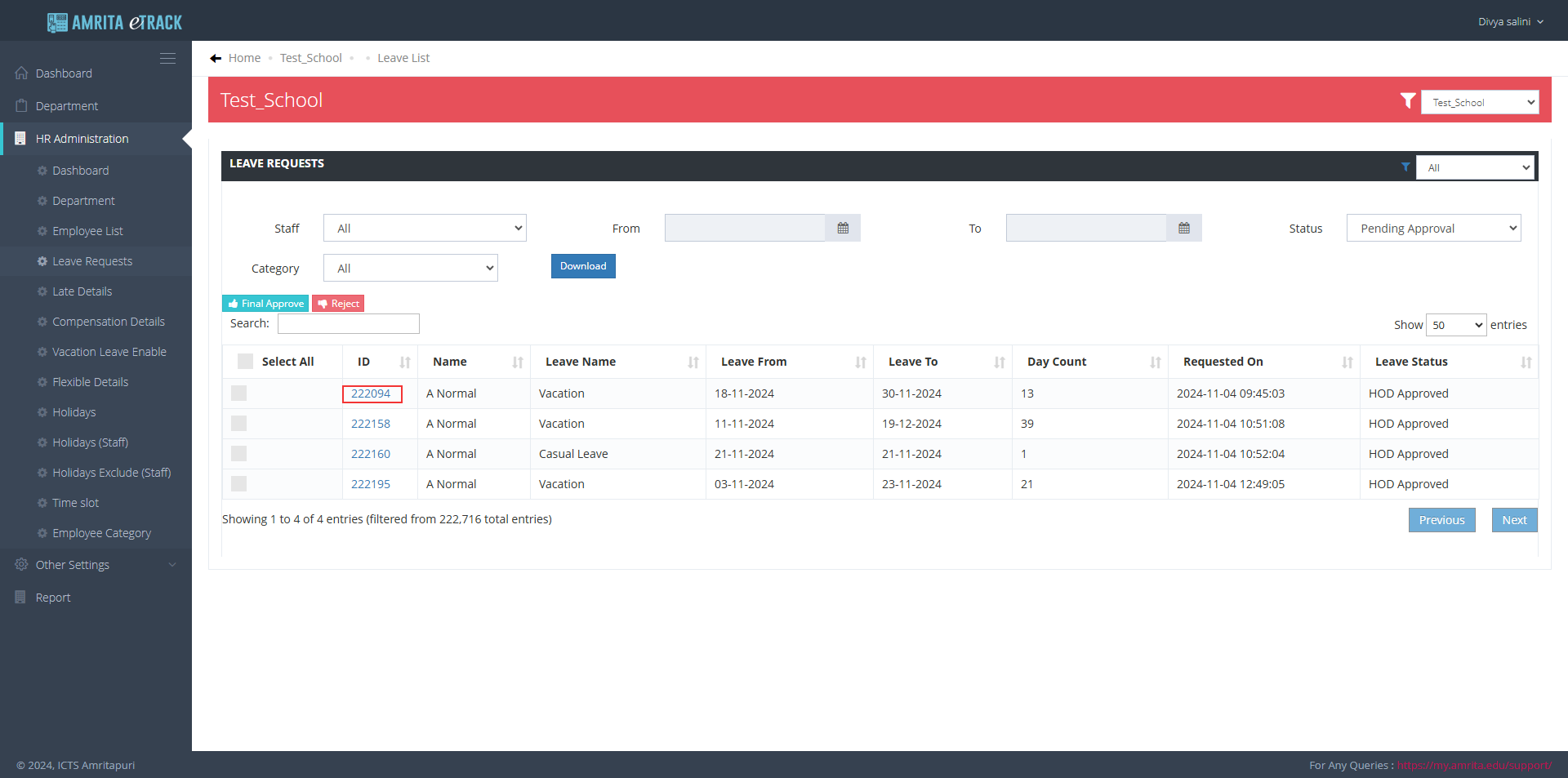
- HR admin can also approve an individual request by clicking the corresponding request ID.
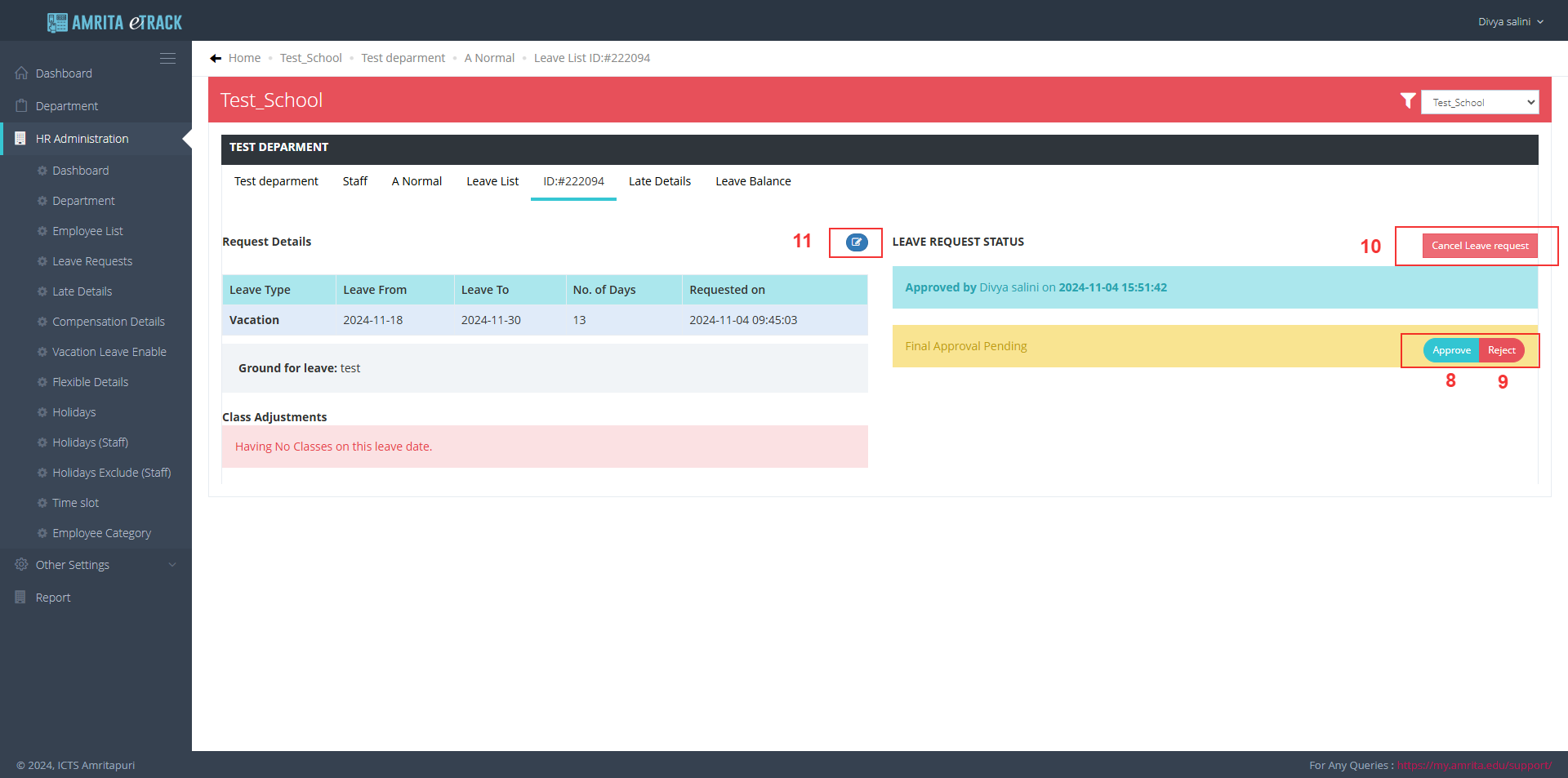
- Click on the Approve button to approve the request.
- Click on the Reject button to reject the request if required.
- HR admin can cancel a vacation leave request by clicking the Cancel Leave request button.
- Click on the Edit button to edit the Leave from and Leave To date.
##The HR can add vacation leave for an individual staff.
The HR Admin has the authority to edit and restrict vacation leave rules for an individual staff member beyond the standard vacation policy, if required.
The HR Admin can also add a vacation leave request for an individual staff member beyond the standard rules set for the school. This does not impact the actual allocated vacation leave count for the staff member.
Click on HR Administration.
- Click on Employee List and then click on the Employee name from the list.
- Click on Leave Request.
- Click on Vacation button.
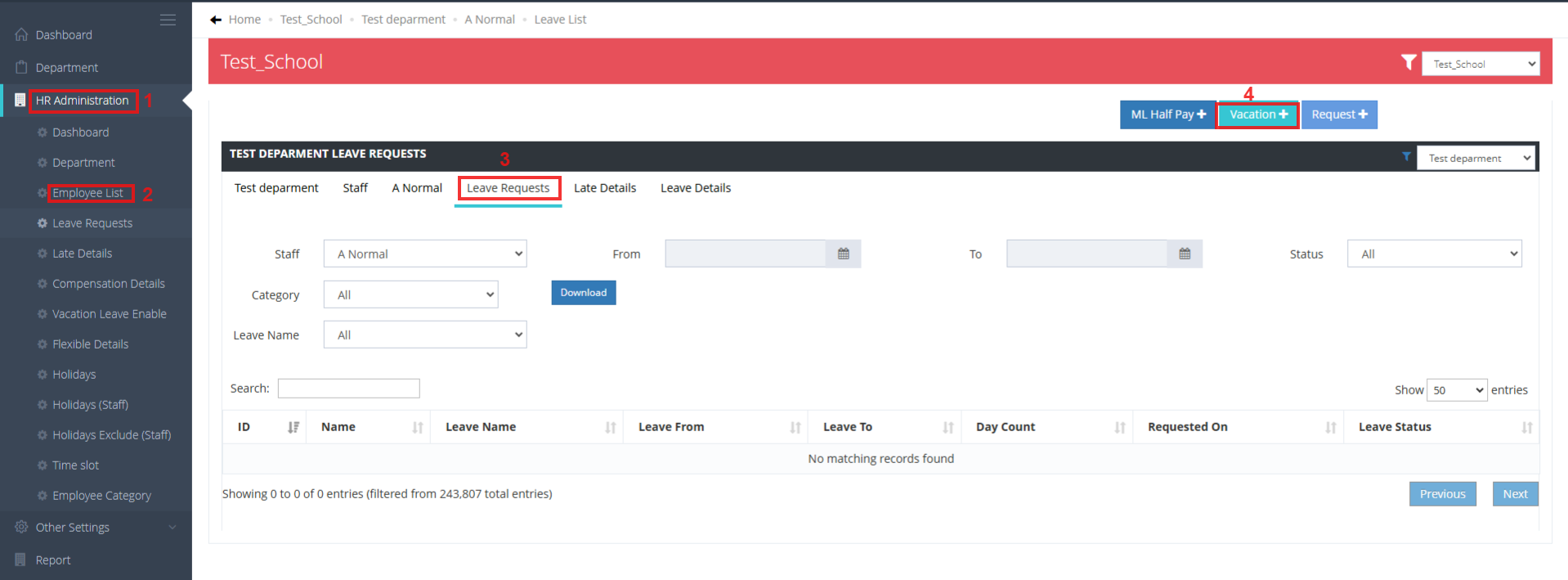
- Select From date and To date
- Add reason.
- Click on Submit button.

##The HR can review the staff vacation leave details.
- Click on HR Administration.
- Click on Employee List.
- From the Employee list click on the Employee name.
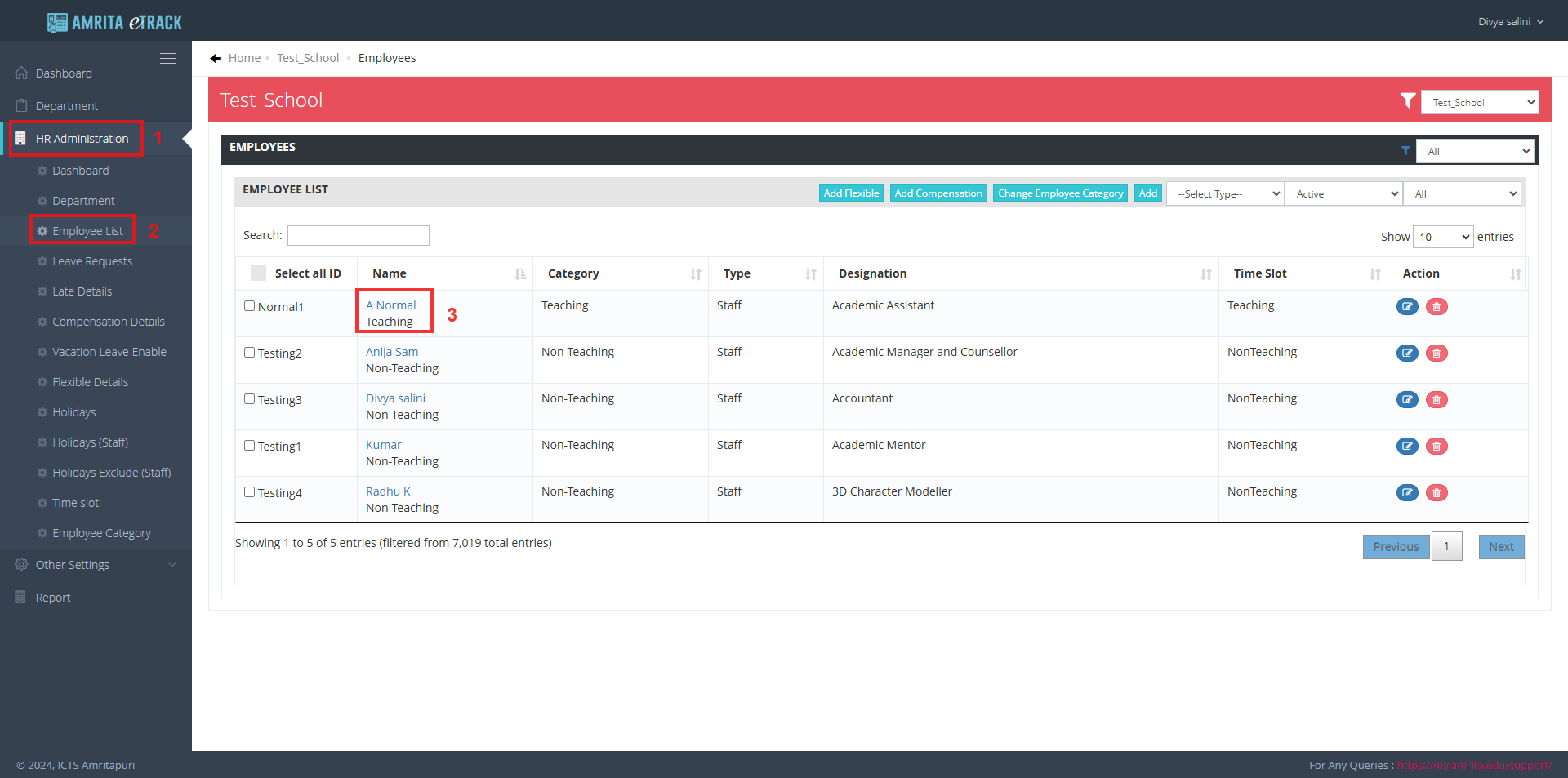
- Click on Leave Details
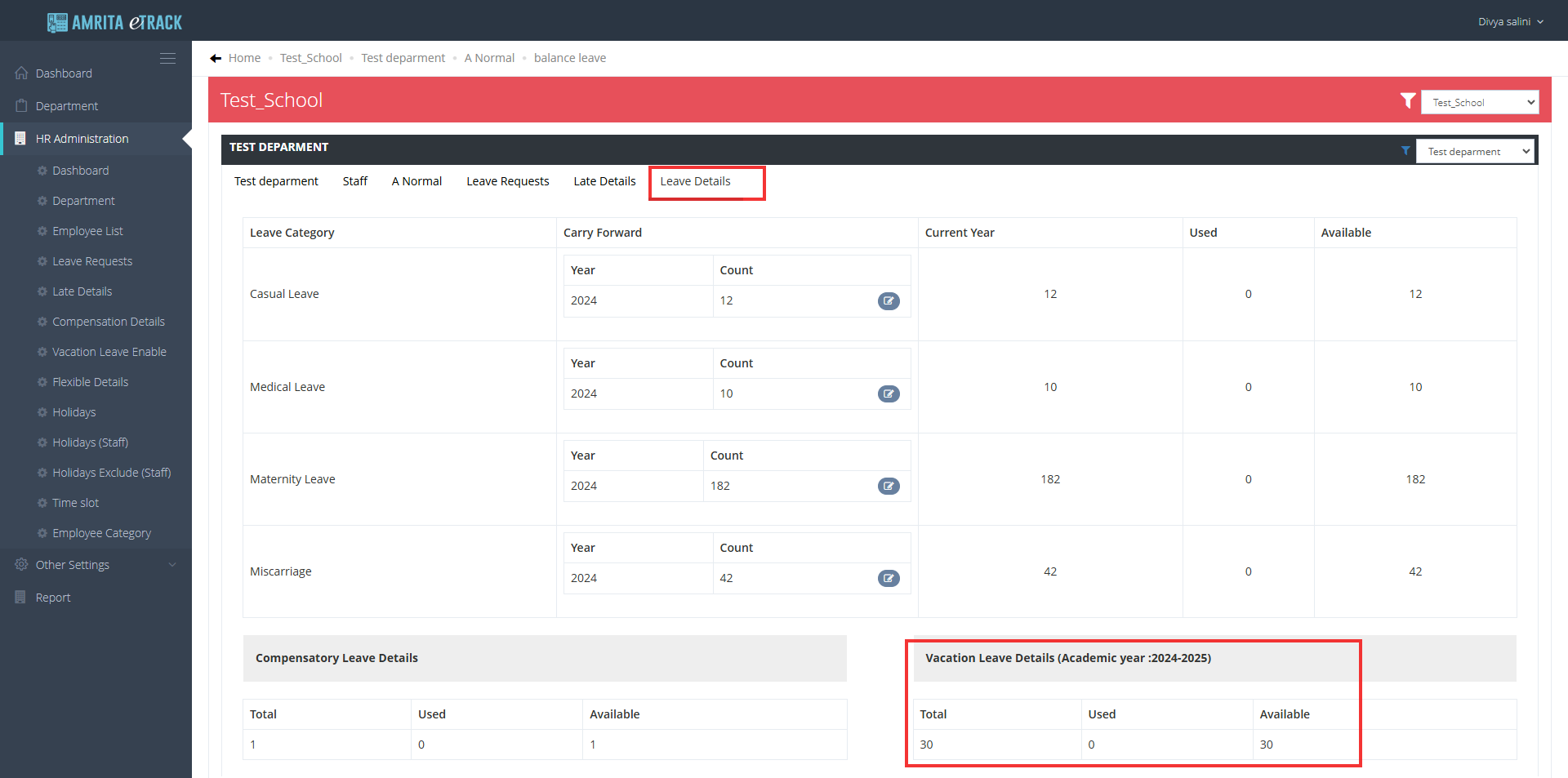
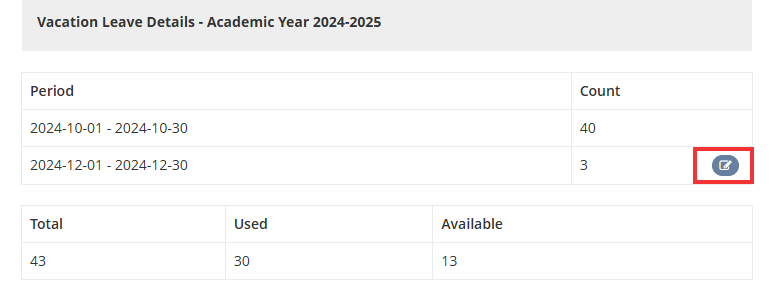
Vacation Leave Details for the current academic year will be displayed.
HR can edit an employee's vacation leave by clicking the edit button. However, once a staff member requests vacation leave, the edit button will no longer be available.